
To run the KenzusTV service on your Formuler Box, simply use MYTV Online 3 App or MYTV Online 2 App. Follow the steps below for easy setup.
Setup KenzusTV service on your Formuler via MyTV Online 3
Open MYTV Online 3.
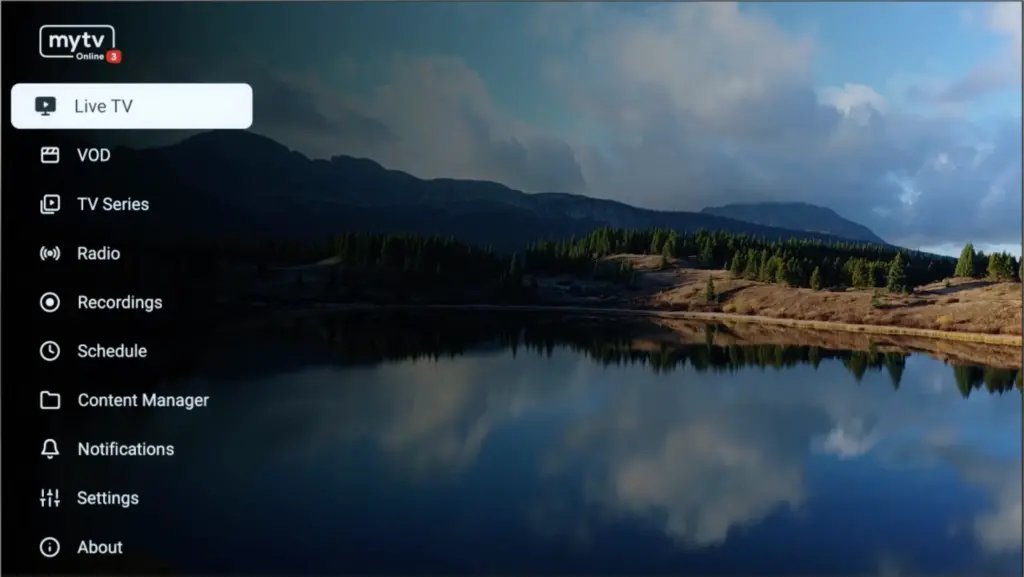
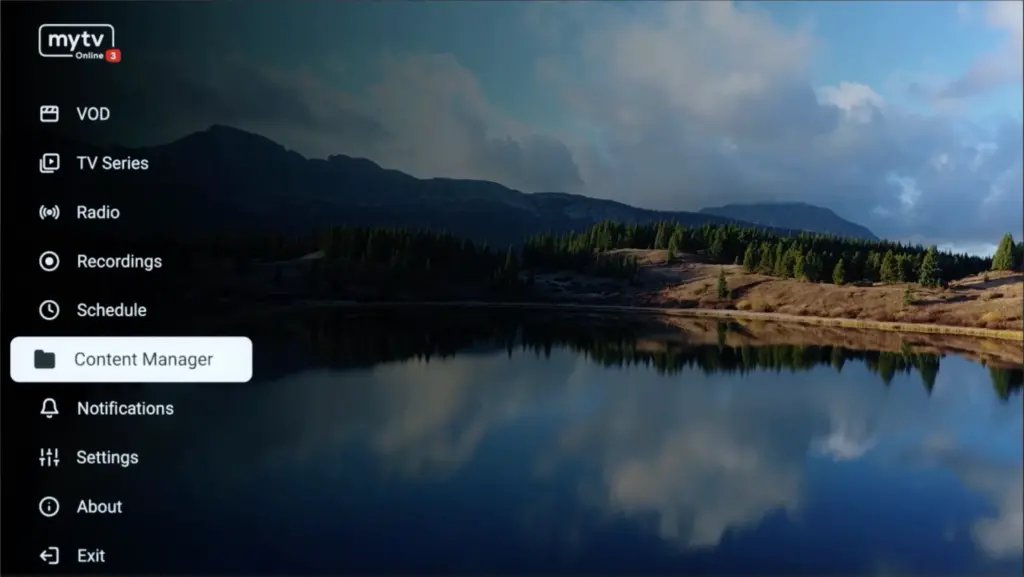
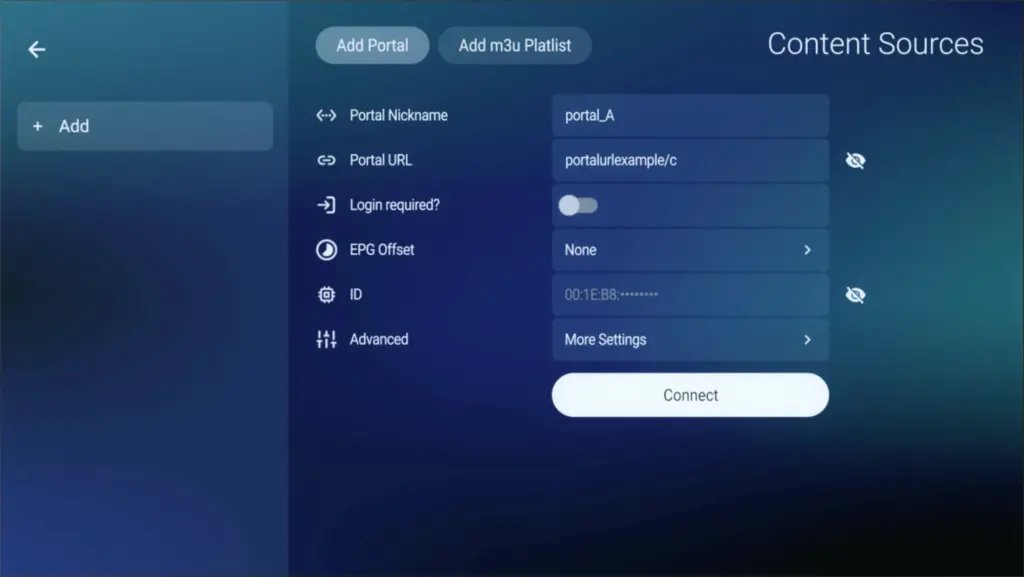
Go to Content Manager. Then Go to Content sources > Add.
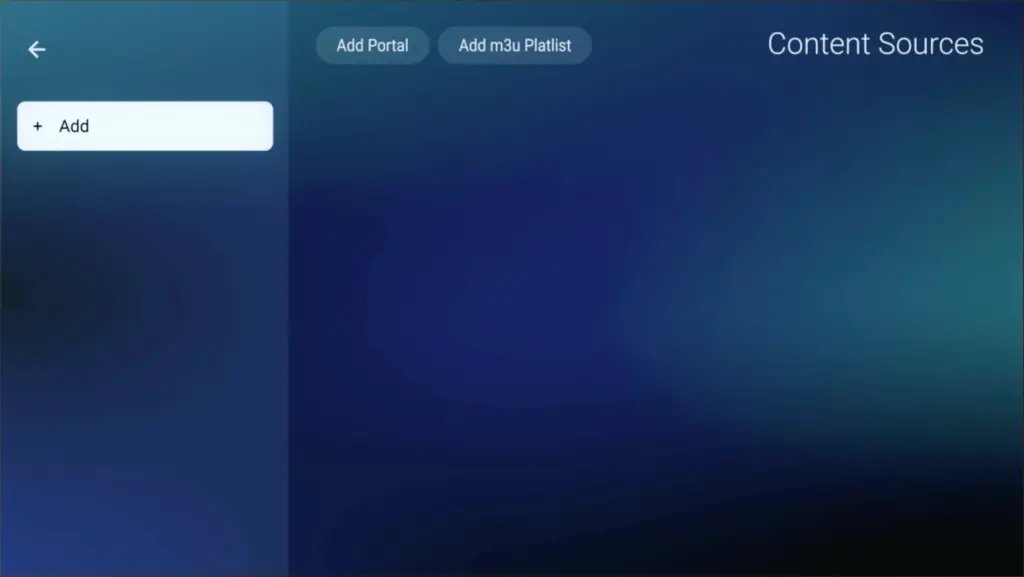
Select 'Add Portal' (highly recommended) to set device as a MAC base device like MAG boxes. Press the eye icon to see the full MAC address — you can find it at the bottom of your box. Look for a label that says 'MAC' or 'MAC Address'. After payment, submit the form with your device's MAC address. This step is essential for activating your KenzusTV service subscription.
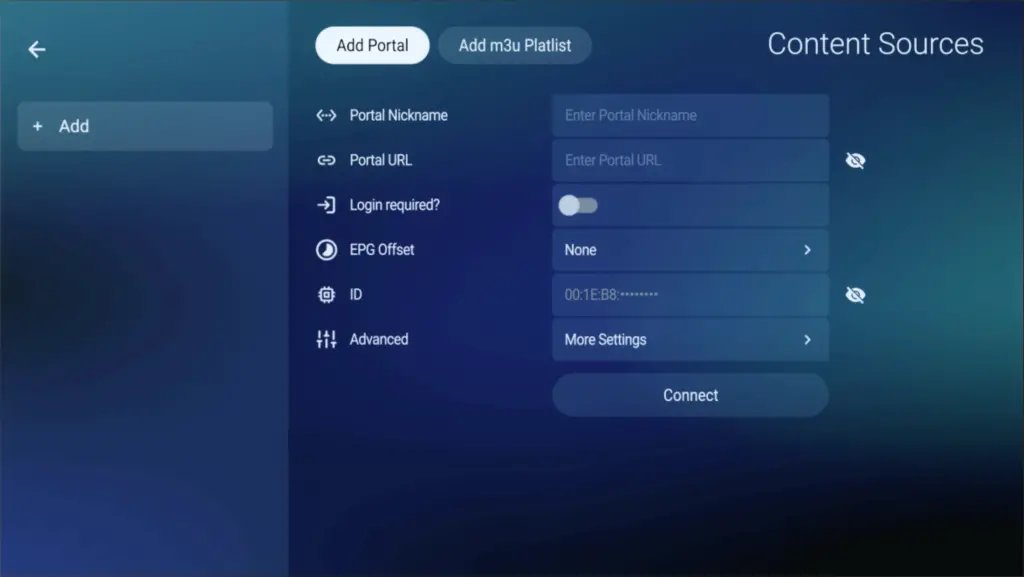
Enter 'KenzusTV' as the Portal Nickname in the first box. Then in the second paste the Portal URL, provided by us after subscribing and Click on 'CONNECT'.
Congratulations! You've now completed the setup of MYTV Online 3 for seamless streaming.
Setup KenzusTV service on your Formuler via MYTV Online 2
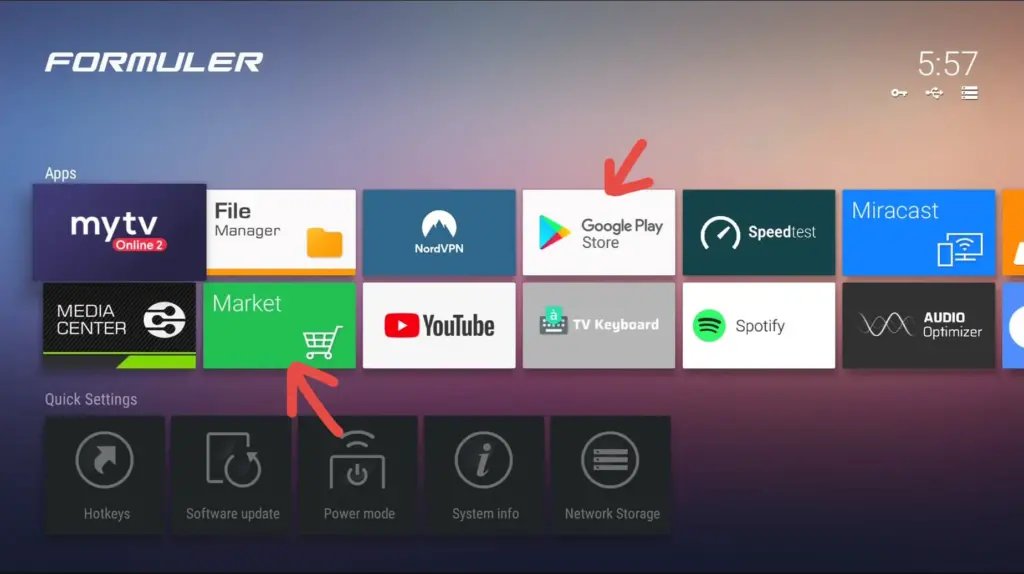
Open MYTV Online 2. If you don't have this application on your device you can download it from the Market Store or from the Google Play Store.
Open MYTV Online 2 and Go to Menu > Connections.
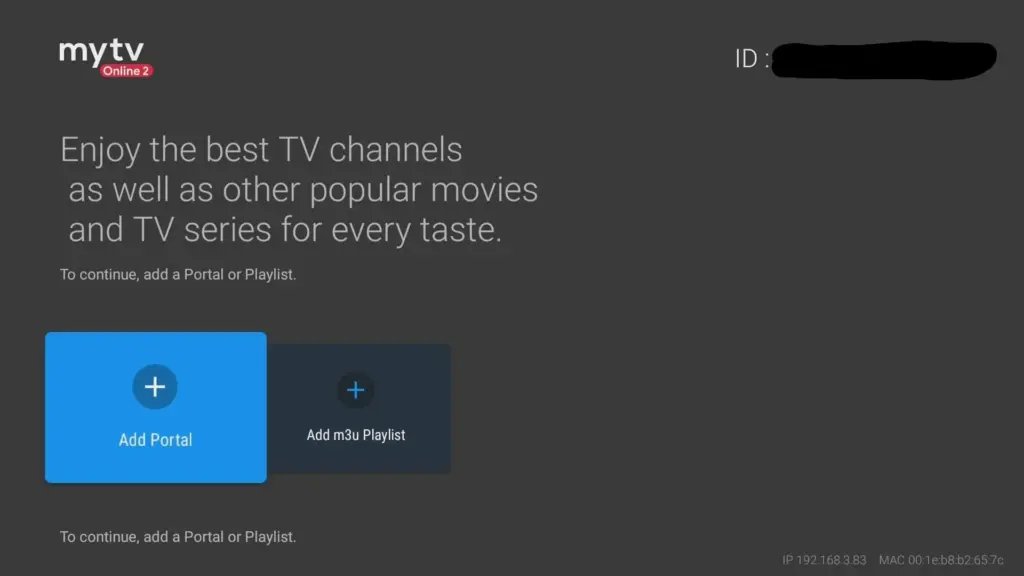
Select 'Add Portal' (highly recommended) to set device as a MAC base device like MAG boxes. Locate the MAC ID of your box at the bottom of your box. Look for 'MAC' or 'MAC Address'. After payment, submit the form with your device's MAC ID. This step is essential for activating your KenzusTV service subscription.
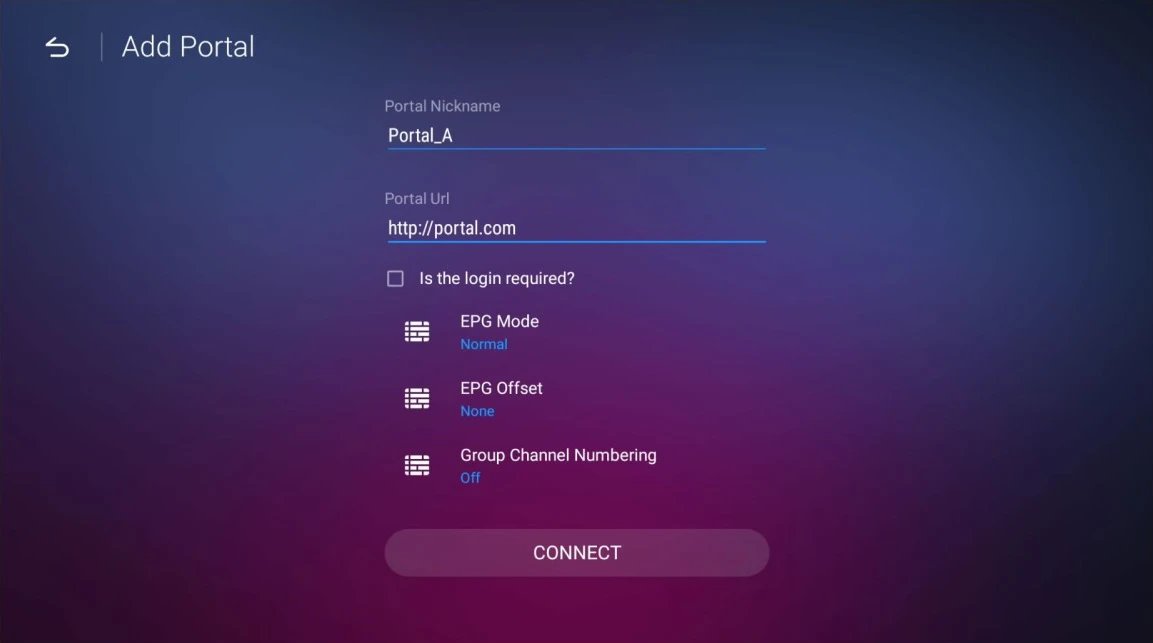
Enter 'KenzusTV' as the Portal Nickname in the first box. Then in the second paste the Portal URL, provided by us after subscribing and Click on 'CONNECT'.
Congratulations! You've now completed the setup of MYTV Online 2 for seamless streaming.