To begin using the KenzusTV service on your Windows Computer, simply follow the steps below:
Click on this link in order to install IPTV Smarters Pro App.
There are two ways to do this. Either using the Xtream Codes API (Username, Password and server Address) or using the M3u playlist. For a smoother setup experience, we recommend setting up via Xtream Codes API as it offers an integrated EPG system to enhance your streaming experience.
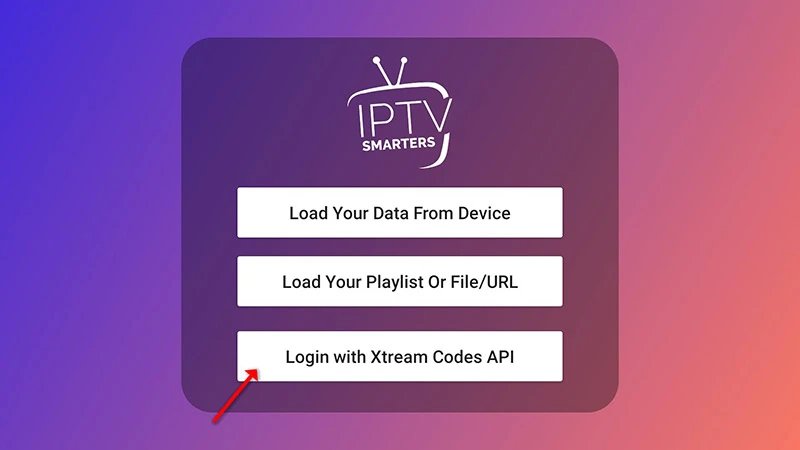
Step 1: Open the app once downloaded and click on 'Add user' then click on 'Login with Xtream Codes API'.
Step 2: Enter 'KenzusTV' as the Name in the first box. Then in the second, third, and fourth boxes, input the Xtream Codes login credentials (Username, Password and URL (Server address)) provided by us after subscribing. Finally click on 'ADD USER'. Get Your Subscription Here.
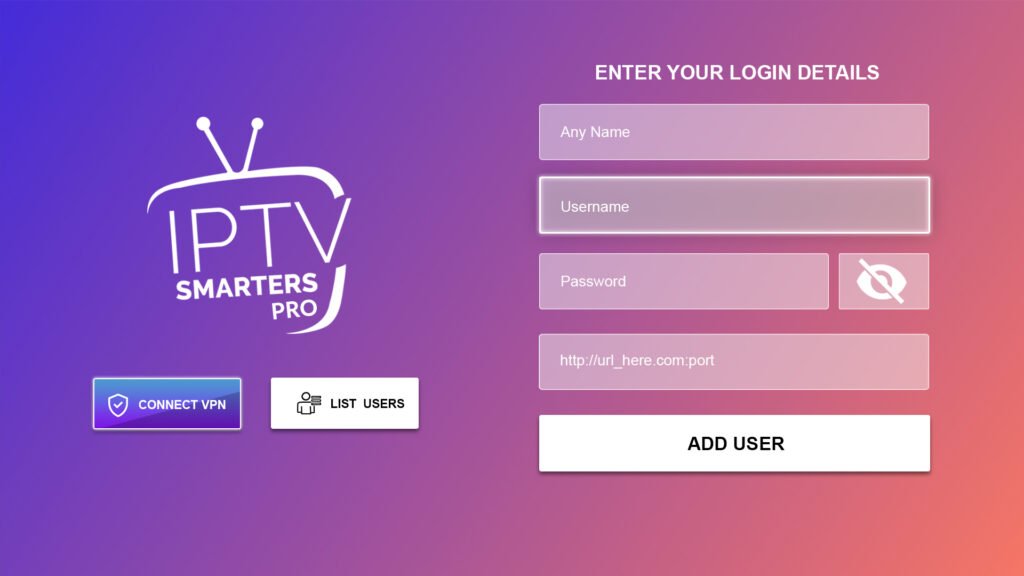
Step 3: Wait some seconds.
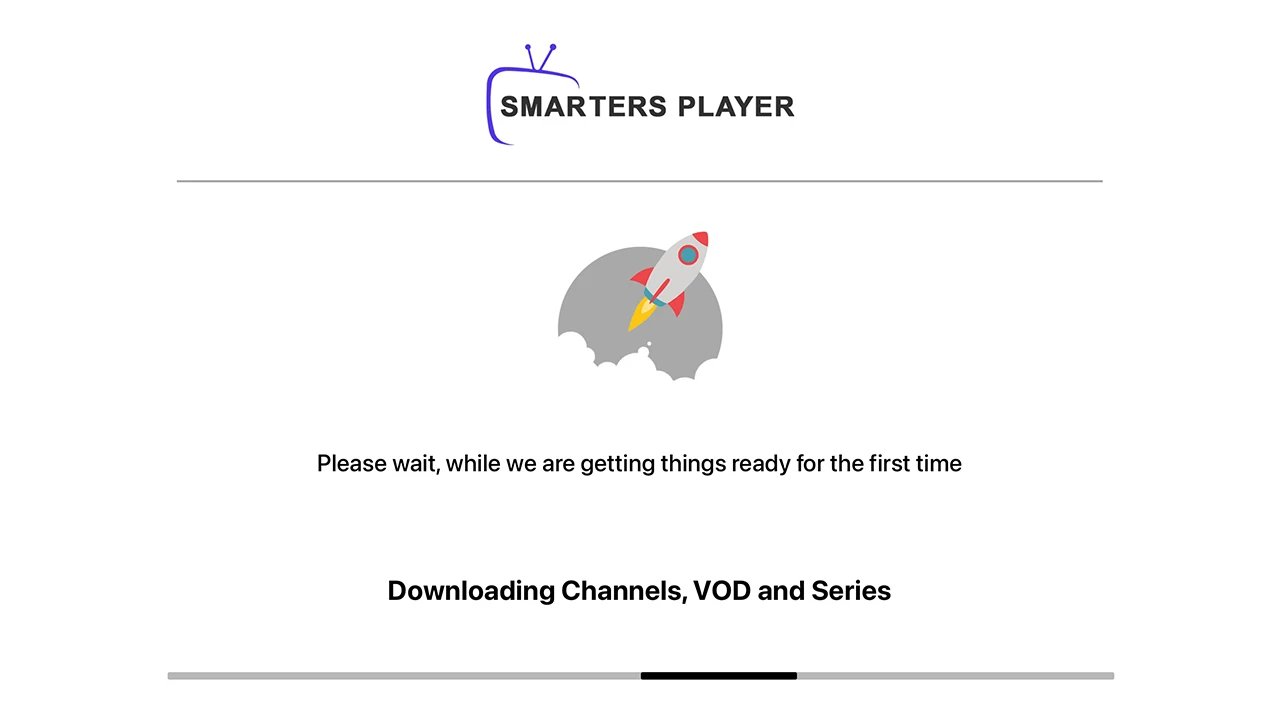
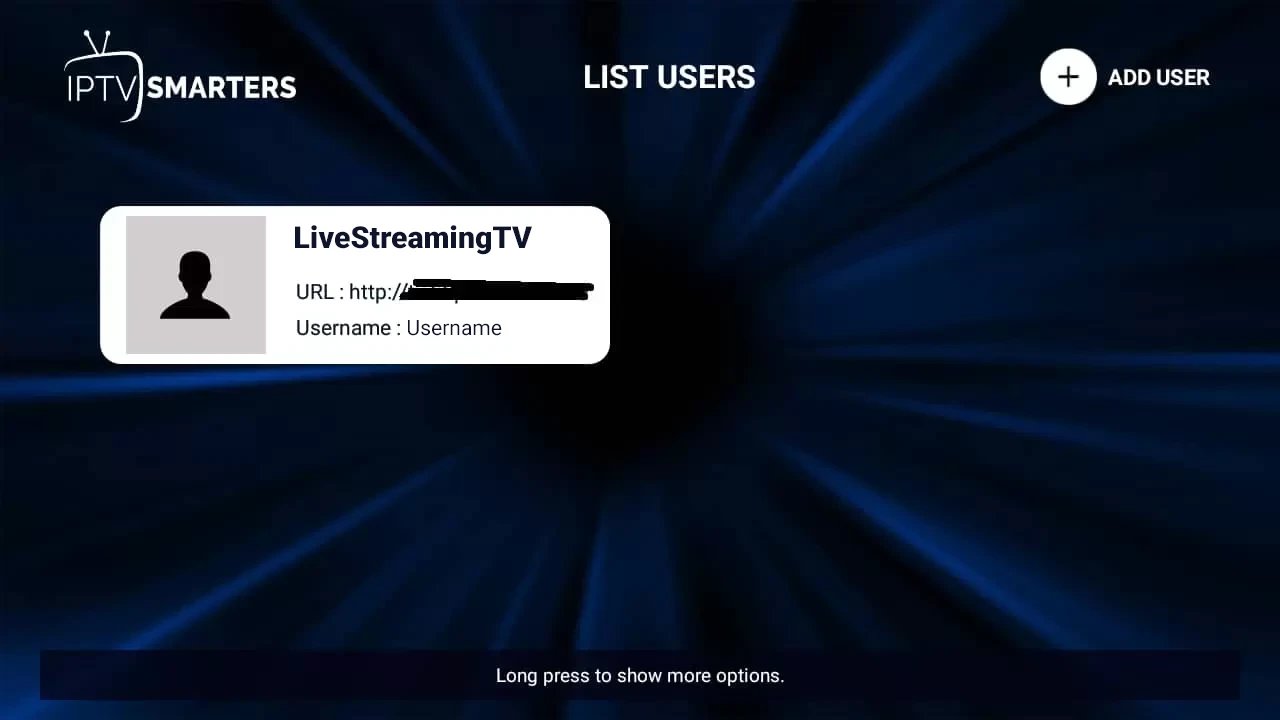
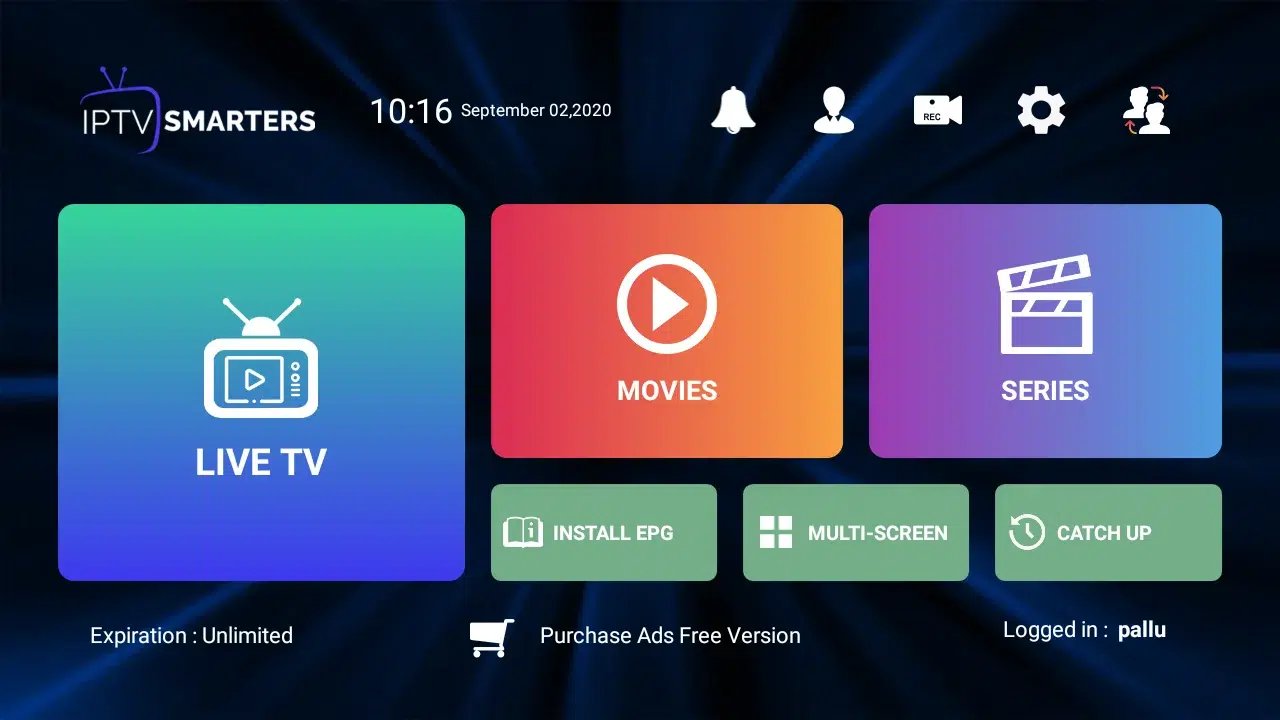
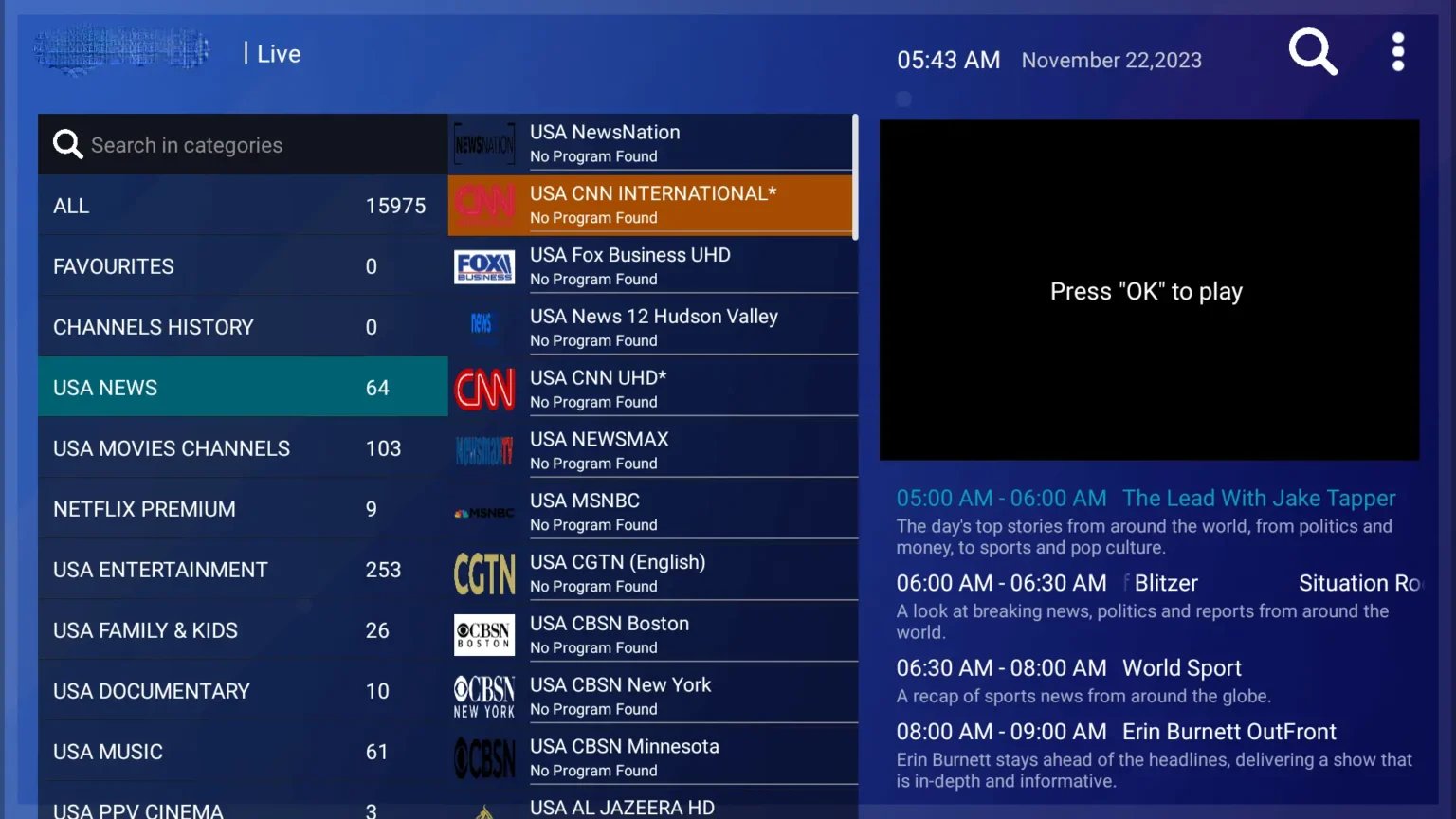
Step 4: Once logged in, access the user list screen and select your newly created profile, as demonstrated in the accompanying images.